CyberFreezeDev Loading
  1. Home
  2. Products
  3. WhatsApp CRM
  4. Scheduled and batch messages

Scheduled and batch WhatsApp messages, within Meta's rules

Timed messages and personalised batches, sent within WhatsApp's opt-in and template rules.

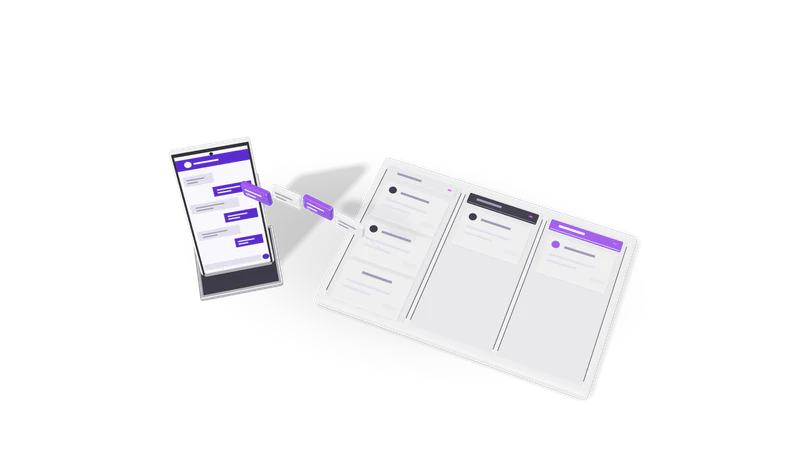
3D render of a phone sending chat bubbles into a three lane CRM pipeline board

Two ways to send

Scheduled

Write now, choose when it goes, with the reason kept beside the message.

Read more about Scheduled

Write a message now, choose when it goes. A reminder the evening before a site visit, a document sent at 9 am when the office opens, a check-in a week after a quote. The note on why it was scheduled stays with the message so anyone on the team can see it.
Batch

One message personalised per recipient and sent to a list in sequence.

Read more about Batch

One message, personalised per recipient with their name or details, sent to a list in sequence. Admission dates to this year's applicants, a clinic's holiday timings to registered patients, a price update to dealers.

The rules that decide what you can send

Only opted-in contacts can be messaged, anything after 24 hours needs an approved template, and Meta charges per delivered template.

Read more about The rules that decide what you can send

Meta's rules shape every scheduled and batch message in WhatsApp CRM:

  • Opt-in. Under the WhatsApp Business Messaging Policy you can message people who gave you their number and agreed to hear from you. A purchased list does not qualify.
  • Templates outside the window. A free-form message only works within 24 hours of the customer's last message. Anything later, which covers most scheduled and almost all batch messages, must be an approved message template in the marketing, utility or authentication category.
  • Cost per template. Since 1 July 2025 Meta charges per delivered template message, at rates that depend on category and country. See Meta's pricing page.

WhatsApp rejects free text sent after the window closes, so we set up templates for your common follow-ups before you need them.

Sending a batch the safe way

Fig. 01 Overhead: messages filed into three pipeline lanes
  1. 01 Pick the audience

    Filter opted-in leads or customers, such as last month's open campaign leads.

    Read more about Pick the audience

    Filter leads or customers who have opted in, for example all leads from last month's campaign that are still open.

  2. 02 Choose the template

    Use an approved template filled from each contact's record.

    Read more about Choose the template

    Use an approved template and fill its placeholders from each contact's record.

  3. 03 Test on yourself

    Send to a staff number first and read it on a phone.

    Read more about Test on yourself

    Send to a staff number first and read it on a phone.

  4. 04 Send in sequence

    Messages go one after another, with each recipient's result recorded.

    Read more about Send in sequence

    Messages go out one after another, not all at once, and the result for each recipient is recorded.

  5. 05 Handle replies

    Replies open a 24-hour window and go to the lead's owner.

    Read more about Handle replies

    Replies open a 24-hour window and go to the lead's owner, like any other inbound chat.

Questions

Can I send a promotional message to everyone in my phone contacts?

Only to people who opted in to hear from your business, and only with an approved marketing template. Sending to people who did not agree is against WhatsApp's policy and risks your number.

How long does template approval take?

Meta reviews each template. We write templates with you during WhatsApp Business API setup so they are ready before your first batch.

Can a scheduled message include a PDF?

Yes, a document such as a brochure or quote can be sent, subject to the same template rules outside the 24-hour window.

Last updated